¶ Update a group of gateways
The constraints associated to the group update command are as follows:
▸ The udpate command is only accessible to users with SERVICE_ADMINISTRATOR and CHANNEL_ ADMINISTRATOR roles
▸ It is not possible to send a new udpate command (whatever its type) if the same one is already in progress for the group or one gateway of the group
To update a group of gateways, you need to go to the Group overview page and select Software update from the CONFIGURATION menu.
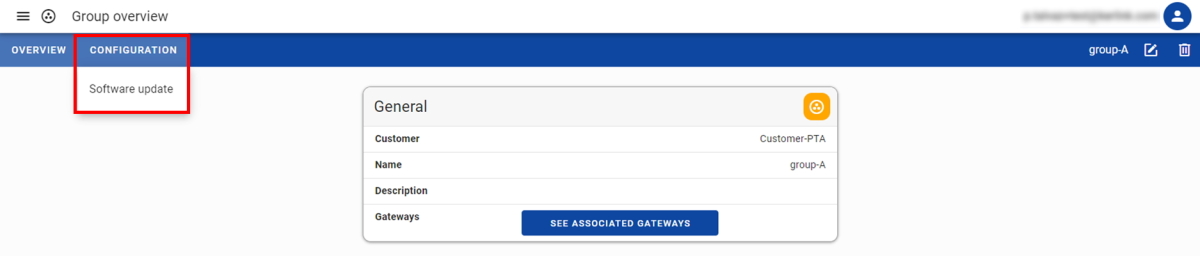
You are then redirected to the Group software update page.
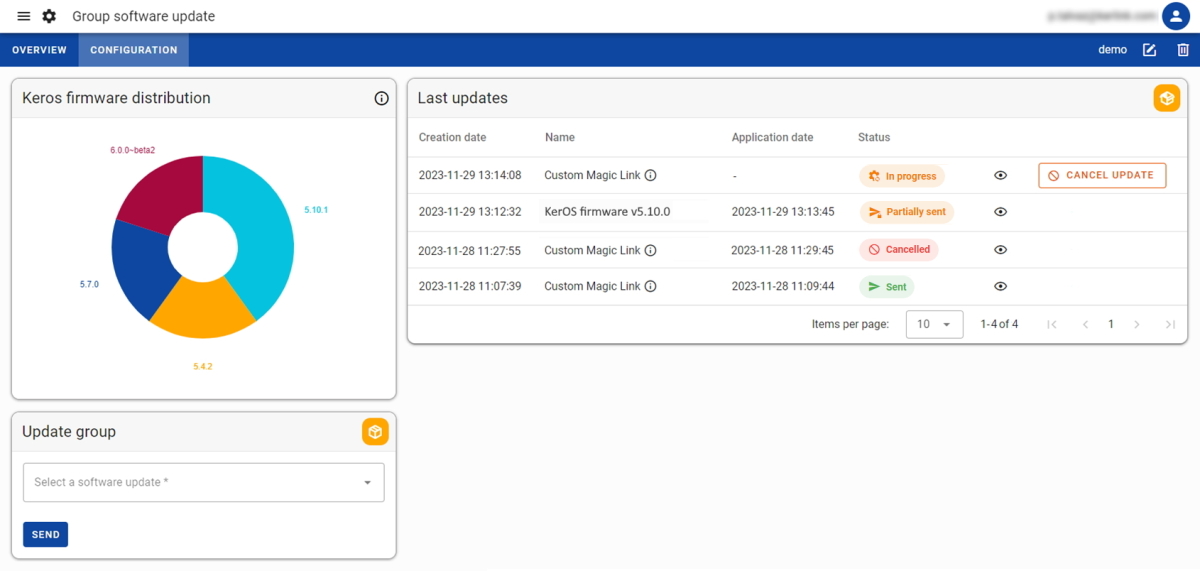
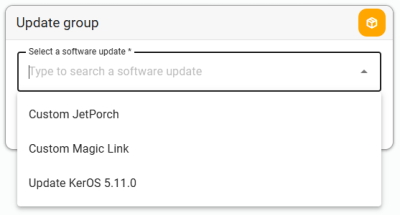
You have the option to select:
- A pre-defined software update (previously declared by Kerlink) to apply a public software or configuration
- A
Custom Magic Linkto apply a specific software or configuration - A
Custom JetPorchscript to apply a specific software or configuration
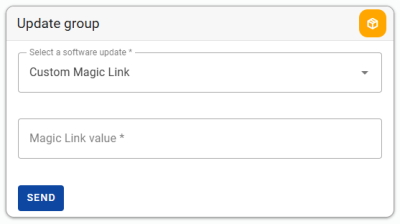
¶ Custom Magic Link
This option will work only for gateways declared in the Magic Link.
For a Custom Magic Link, you will be asked to enter the Magic Link value (i.e. the hash) provided by Kerlink support team.
¶ Custom JetPorch script
Applying a JetPorch script may affect the connectivity and functionality of the gateway.
Please proceed with caution and ensure that you fully identified the implications before sending it.If you have any questions about your JetProch script, please don't hesitate to contact Kerlink support team.
This option is only compatible with gateways running on KerOS 6.
Refer to KerOS 6 Wiki for Getting started with Ansible playbooks and JetPorch.
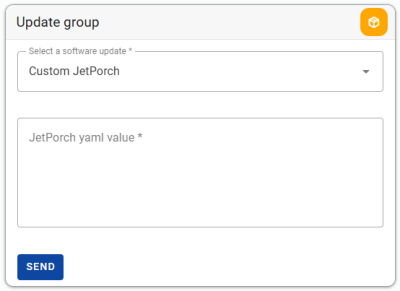
For a Custom JetPorch script, you will be asked to enter the JetPorch yaml value (i.e. the script in yaml format).
After clicking on SEND button, you will be asked to confirm in a popup.
Once triggered, the udpate command will be sent to each gateway of the group when the next telemetry message is received (message expected every hour).
When an update command is in progress (waiting to be sent to all the gateways), an orange dot is displayed in the CONFIGURATION menu.

You can consult the software update history of your group in the ''Last updates'' table.
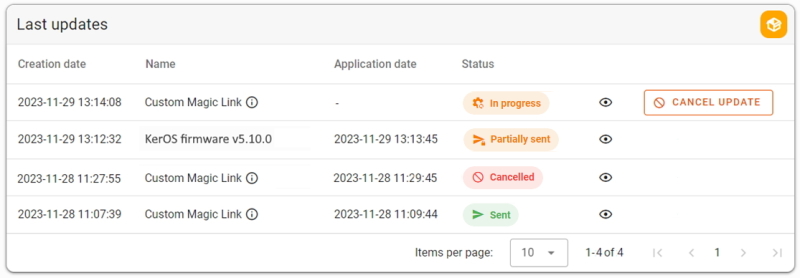
Depending on its progress, the update command goes through different possible statuses:
- Created: the update command has been created
- In progress: the update command is ready to be sent to the gateways
- Sent: the update command has been sent to all the gateways
- Partially sent: the update command has been sent to some of the gateways
- Cancel request: the cancellation of the update command has been requested
- Cancelled: the update command has been cancelled
To cancel the update command, you need to click on the CANCEL UPDATE button present in the table.
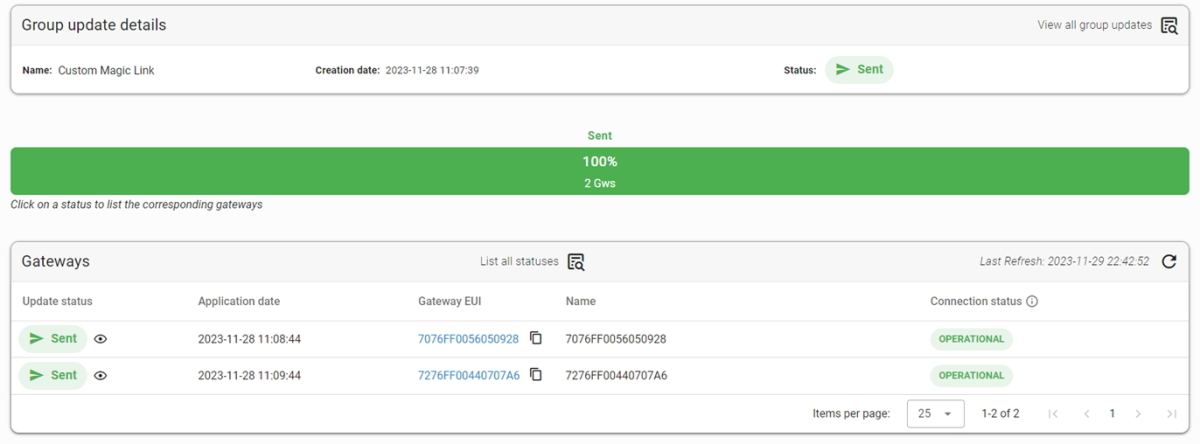
Clicking on the eye link in the Last updates table opens a dashboard allowing you to follow the progress of the group update.

Clicking on a status in the progress bar allows to only list the gateways with update specifically in this status.
You have the option to cancel the update individually at each gateway (by clicking on the CANCEL UPDATE button at the end of each line).
The dashboard is automatically refreshed and goes through the different statuses, until it is Sent, Partially sent or Cancelled.